

What Every Option Does
The dashboard shows you only the options that apply to the file you picked, so most of this list will not be on your screen at once. Here is what each one does and when it is worth touching.
Every picture on this page is a photograph of the app itself, taken automatically from a working copy. Nothing in them is drawn or arranged by hand.
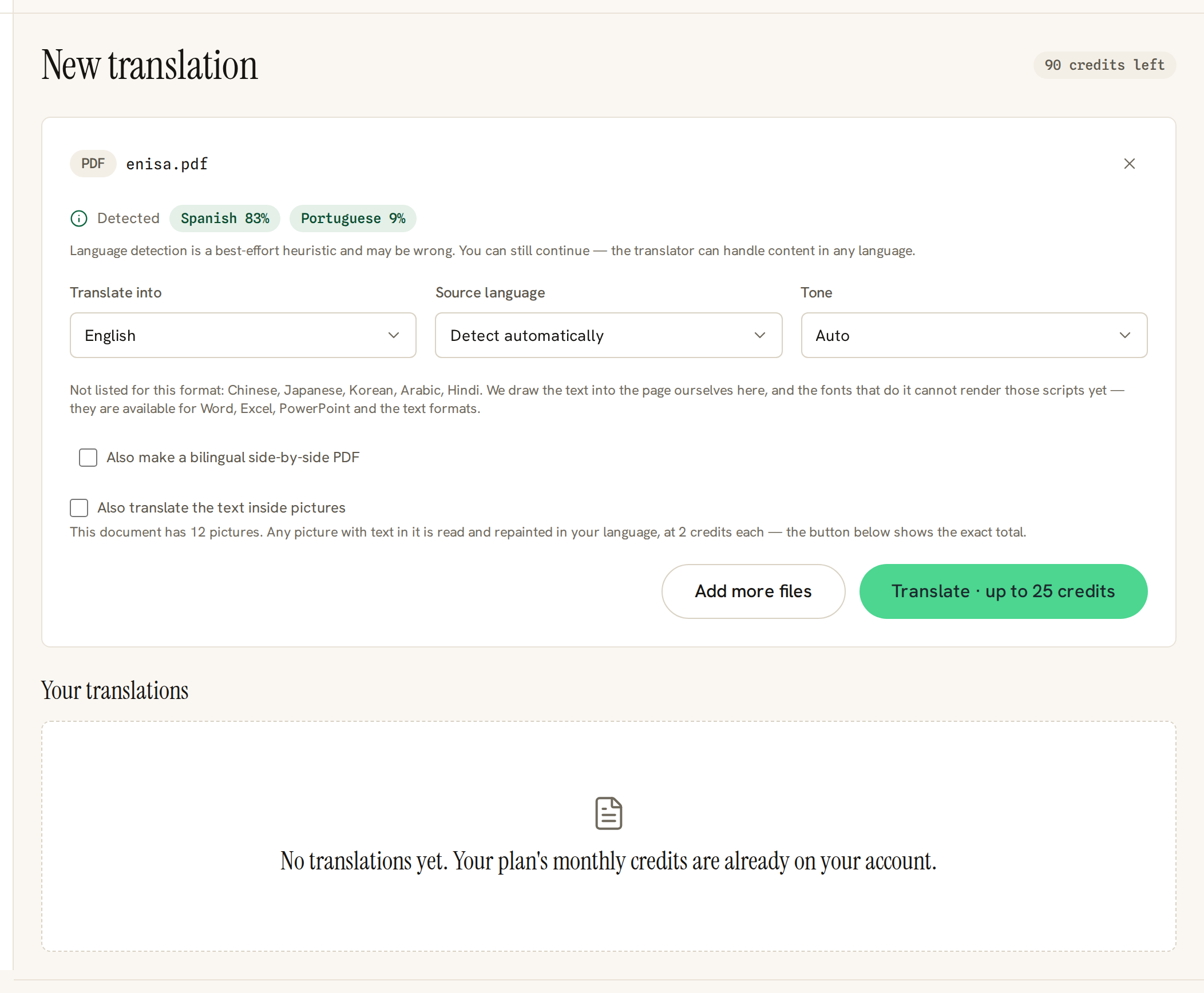
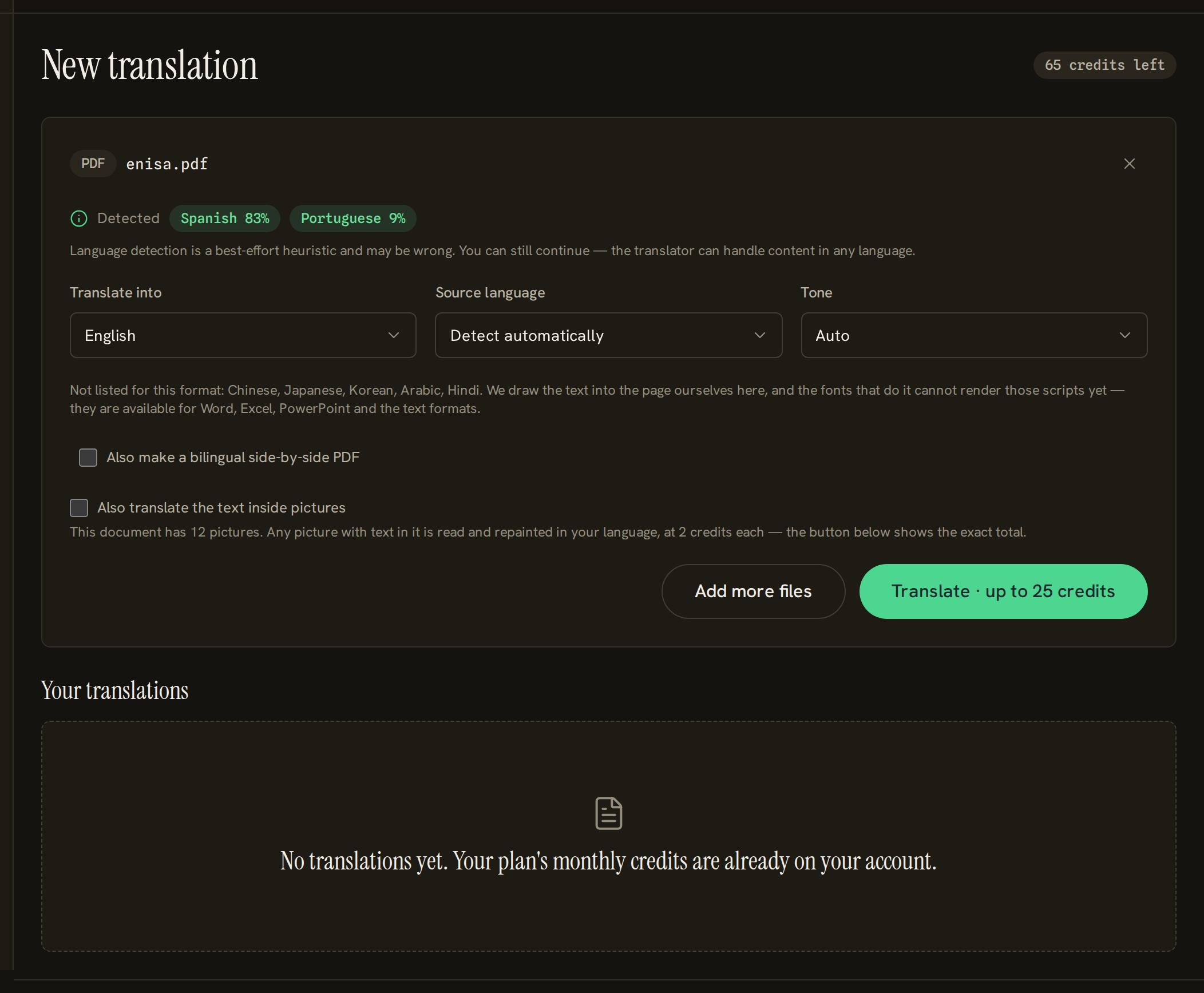
- 1What we think the document is written in, and roughly how much of it is in each language. It is a guess, and you do not have to correct it.
- 2The language you want the document translated into. This is the only choice you have to make.
- 3Leave this on automatic unless the guess above is wrong.
- 4How formal the translation should sound. Automatic follows the document.
- 5PDFs only: also produce a second file with the original and the translation side by side.
- 6The exact cost, before anything is charged. Pressing this is the moment credits are set aside.
Translate Into
The language you want. This is the only choice that has to be made — everything else has a working default.
When to use it Always. If a language you expected is missing from the list, it is because of the file type rather than the language: text in a PDF or a picture is drawn onto the page by us, and we only offer scripts our fonts can actually draw. The form says which ones are missing and where they do work — the same language is usually available if you upload a Word, Excel or PowerPoint file instead.
Source Language
What the document is written in now. Left on automatic, the detected language is used; the detection is a guess and is shown to you before you start.
When to use it Only when the guess is wrong. Getting it wrong is rarely fatal — the translator copes with mixed and mislabelled content — but a document that is mostly one language with a long quotation in another is worth setting by hand.
Tone
How formal the result should sound. Formal picks the polite form in languages that have one; informal picks the familiar one; automatic lets the translation follow the document.
When to use it Set it for anything that will be read by someone you do not know — a contract, a letter to an authority, an offer. Leave it on automatic for internal notes and documentation.
Glossary
A list of your own terms and how they must be translated, plus terms that must never be touched. This control appears only once you have made at least one glossary, on the glossaries screen.
When to use it Whenever product names, job titles or legal terms have to come out the same way every time, across every document.
Bilingual Side-by-Side PDF
PDFs only. As well as the translated PDF you get a second file with each original page beside its translation.
When to use it When somebody has to check the translation against the original — a reviewer, a lawyer, a colleague who speaks both languages. Ask for it before you start; it cannot be added to a translation that has already run.
Cells That Already Hold Two Languages
Some workbooks keep two languages in the same cell, one under the other. This control appears only when we find more than one language in the sheet, and it decides what happens to those cells.
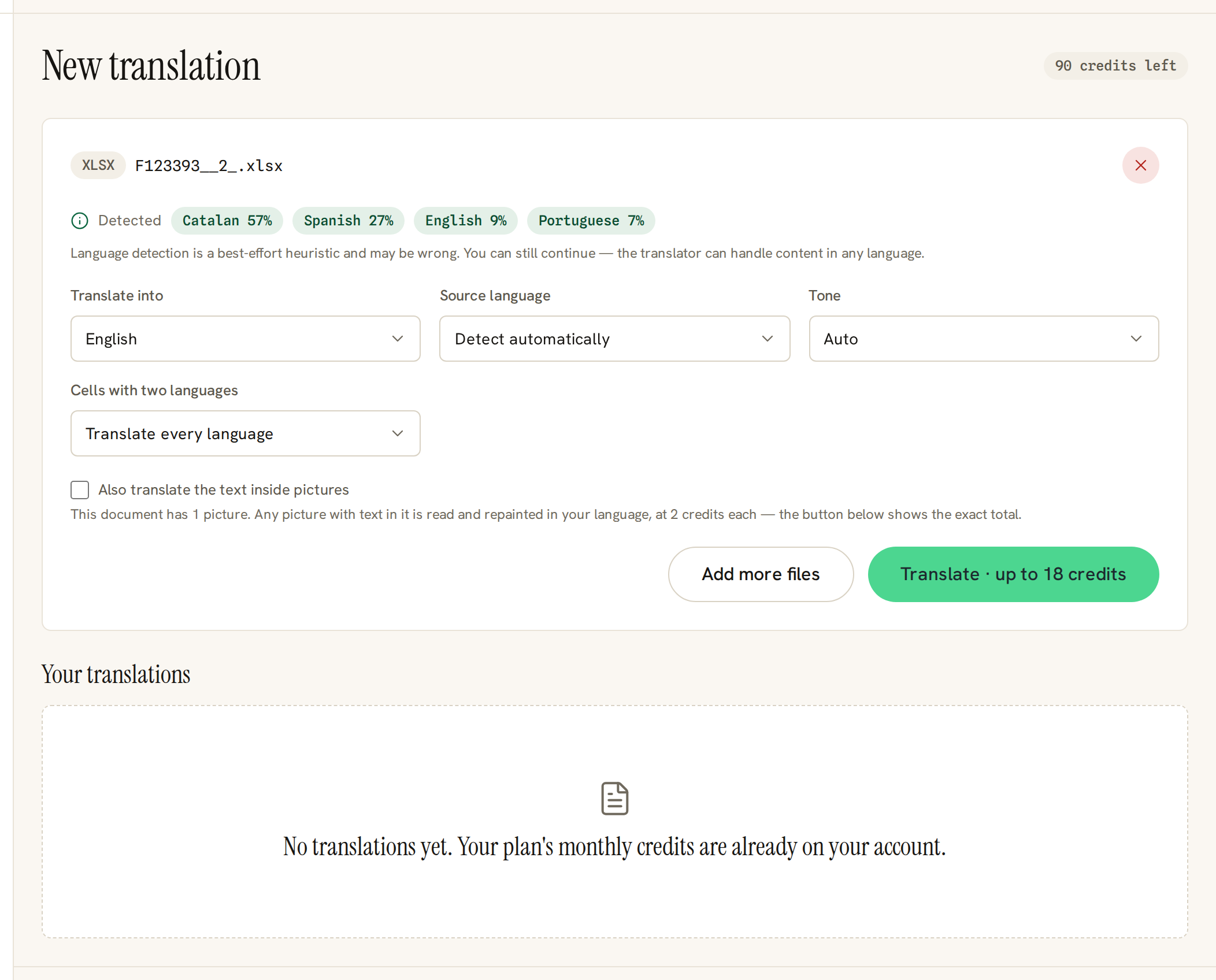
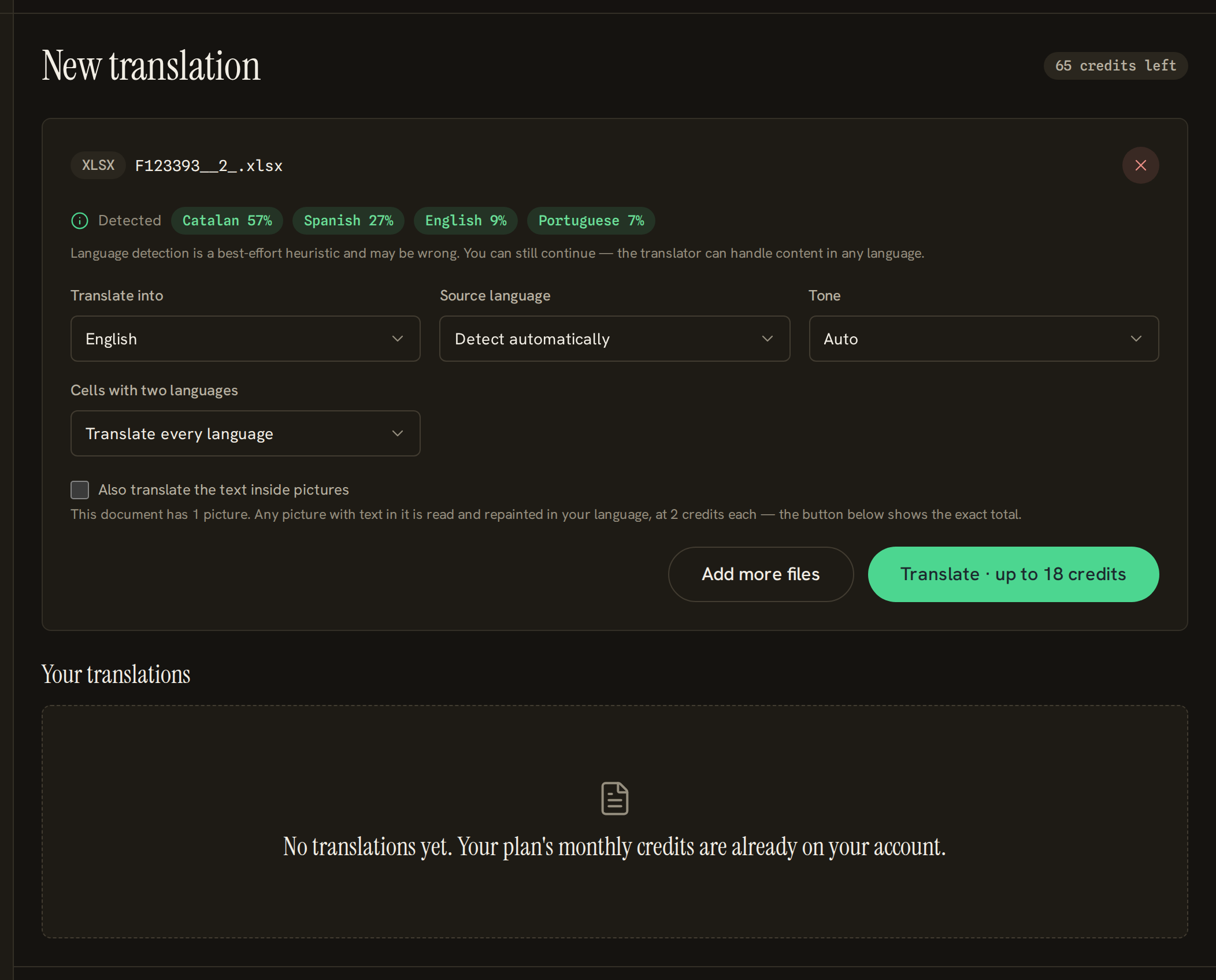
- 1This control only appears for a spreadsheet that already holds more than one language, because only then is there a decision to make.
- Translate every language
- Every language in the cell is replaced by the target language.
- Keep one language, translate the rest
- One language you name is left untouched and the rest are replaced — the usual choice when the workbook must stay readable to its original audience.
- Keep the original and add the translation
- Nothing is removed: the translation is added under what is already there.
Mirror the Layout for Right-to-Left
Appears when you are translating into a right-to-left language. It mirrors the arrangement of the page so the result reads naturally in that direction, rather than leaving a left-to-right layout with right-to-left words in it.
When to use it Turn it on for anything a reader will read as a document. Leave it off when the arrangement carries meaning that must not flip — a diagram, a form that mirrors a paper original, a table matching a printed one.
Several Files at Once
Drop more than one file and each keeps its own row, its own progress and its own result. The cost of the whole selection is quoted before anything starts, and a file that fails does not take the rest with it. When the first one finishes you can download the whole set as a single archive.
When to use it For a folder of similar documents. It is included from certain plans upwards — the pricing page says which.
Text Inside Pictures
If the file you upload is itself a picture, or a PDF made of scanned pages, the text on it is read and redrawn in the new language automatically. There is nothing to switch on. Reading a picture is best-effort: a line the recogniser cannot make out stays in the source language on the page, and the page or image is billed in full either way. Pictures embedded inside a Word, PowerPoint or Excel file are a different case: their text is left alone by default, and asking for it costs extra because each picture has to be read and repainted. Today that can only be asked for through the API, not from this screen.
When to use it Worth knowing before you wonder why the caption inside a screenshot in your report came back in the original language.