

Translate Your First Document
Five steps, from a blank screen to a translated file on your computer. Each step shows the screen you will be looking at.
Every picture on this page is a photograph of the app itself, taken automatically from a working copy. Nothing in them is drawn or arranged by hand.
1. Create an Account
Open the sign-in screen and create an account with an email address and a password. We send a confirmation link to that address — open it. Until the address is confirmed you can sign in and look around, but no translation will start.
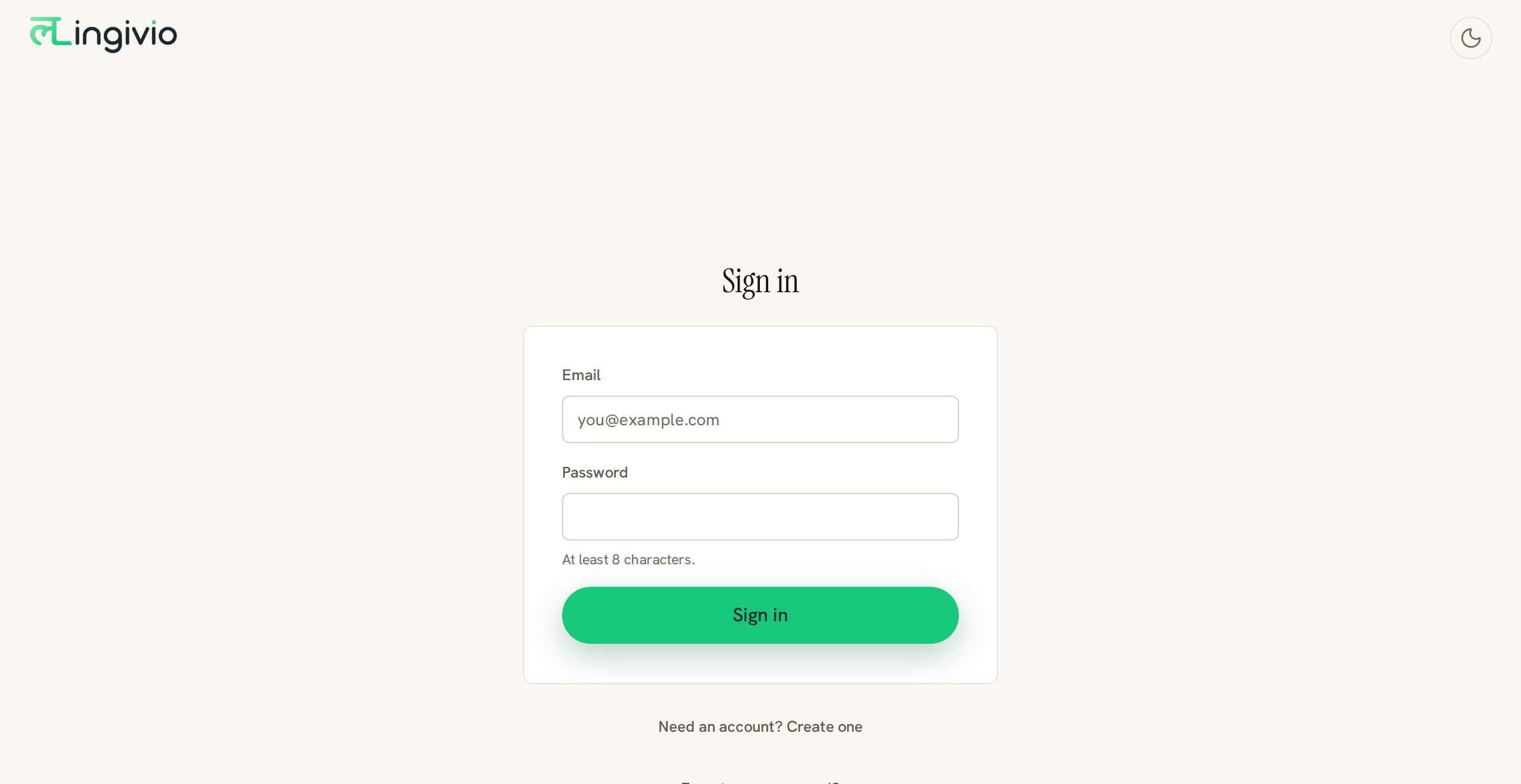
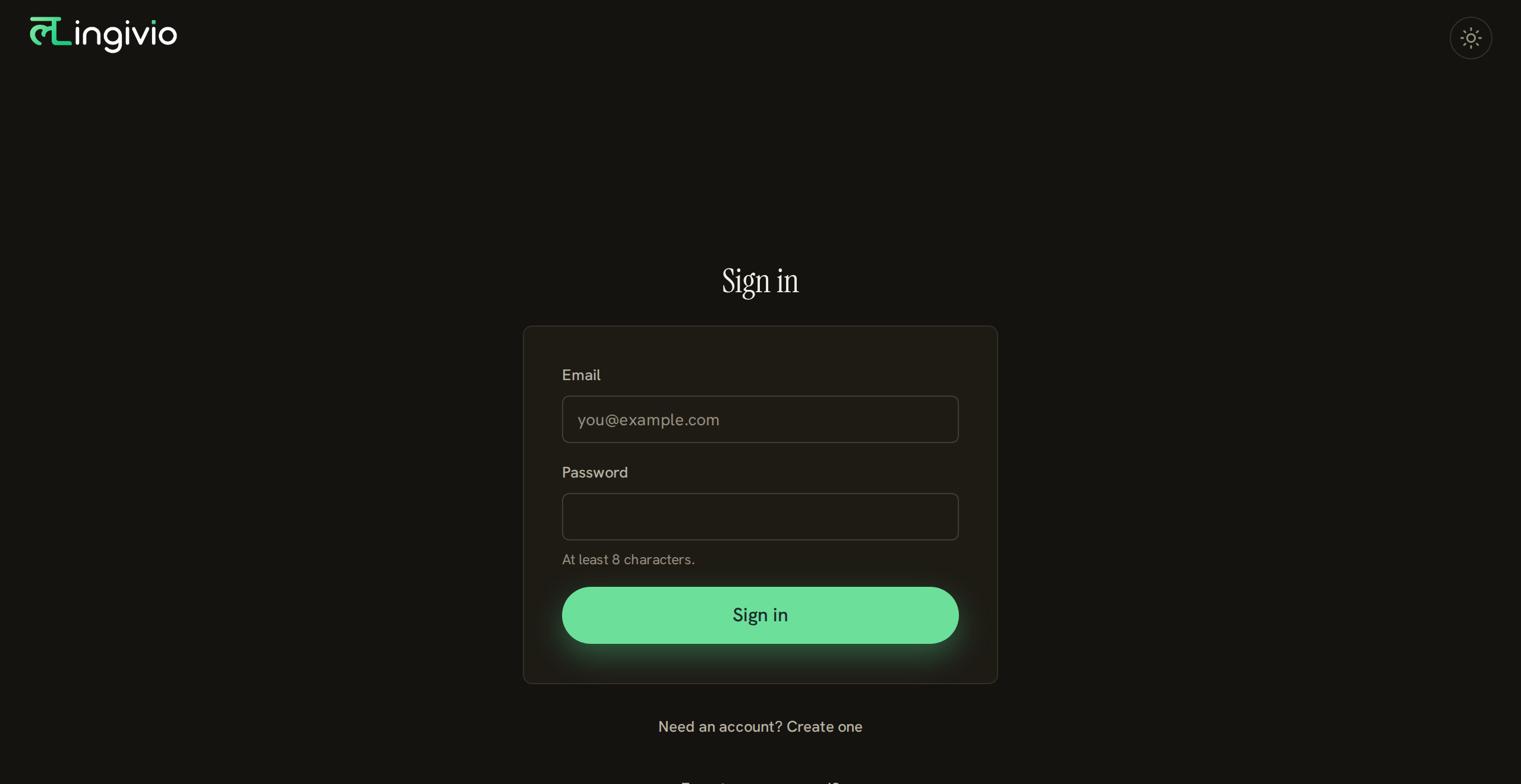
- 1Your email address. The confirmation link goes here, and you need to open it before your first translation will run.
- 2A password of your own choosing.
- 3Signs you in and takes you straight to the dashboard.
- 4First time here? This switches the same form to creating an account.
2. Add Your Document
The dashboard is the first screen after signing in. Drag a file onto the dashed box, or click it and pick one. The file is uploaded and then read on our side to work out what it is, how long it is and what language it is in — none of that costs you anything.
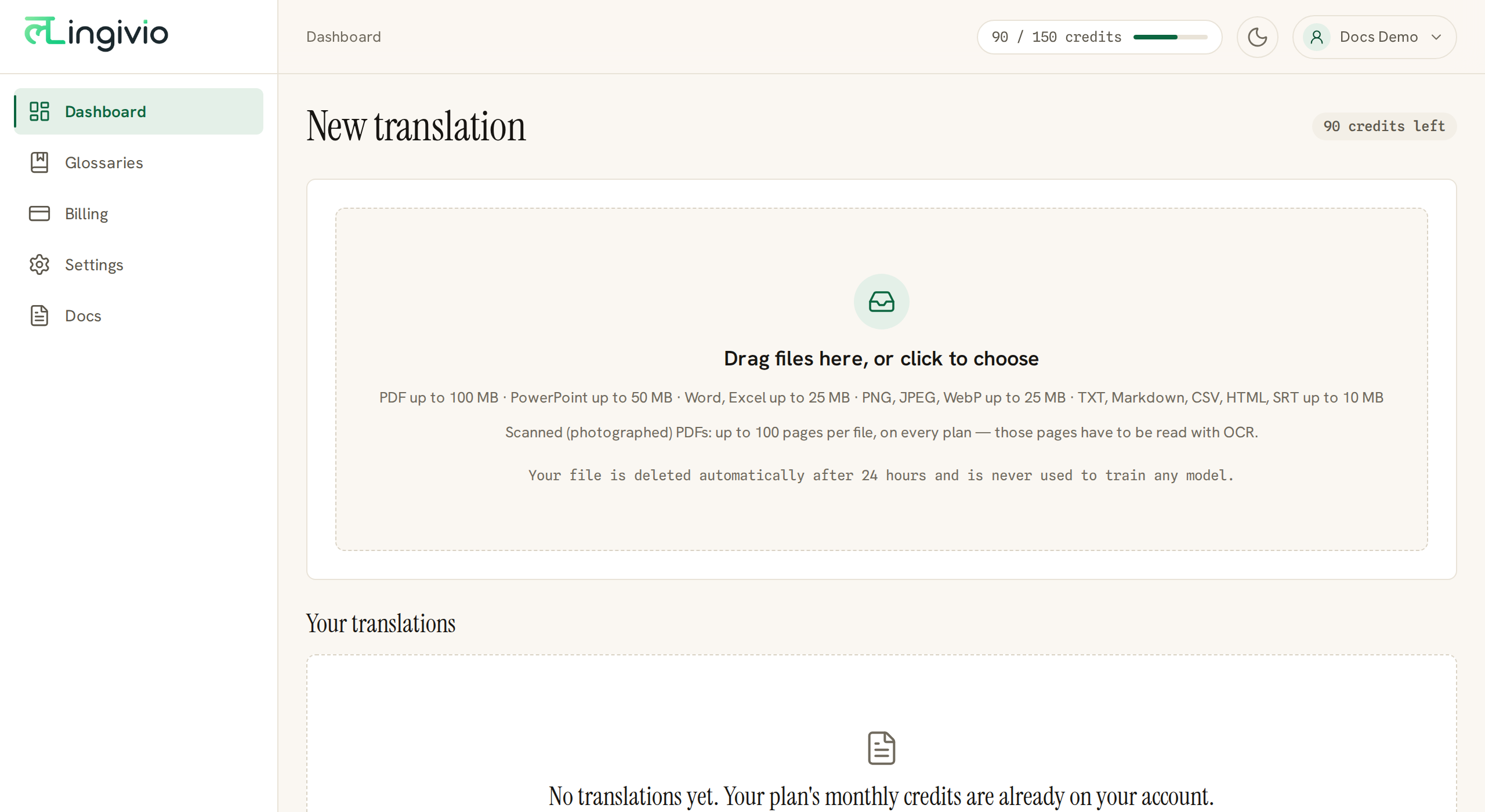
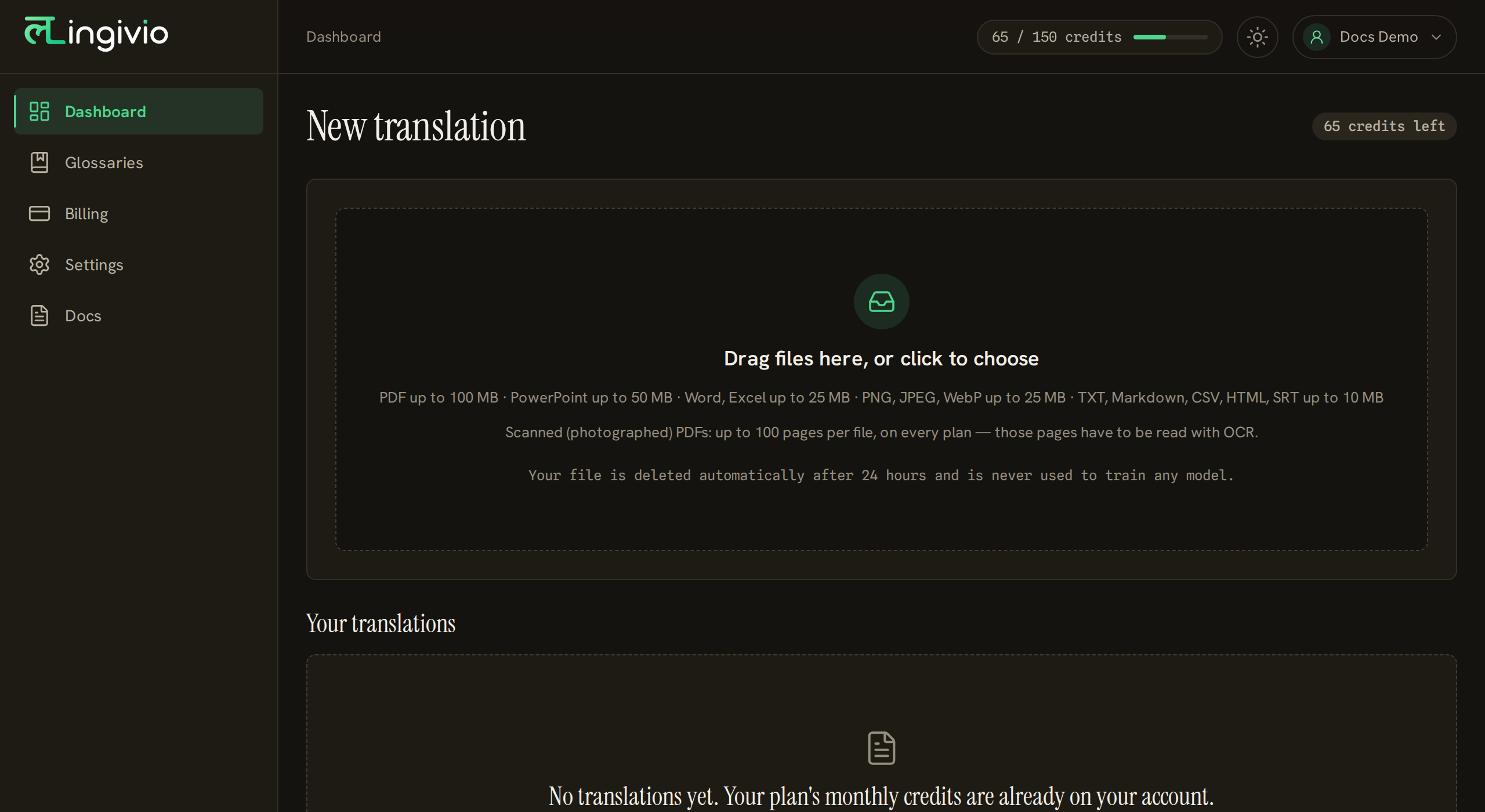
- 1Drop a file here, or click to browse for one. Several files at once is allowed on plans that include it.
- 2Your credit balance, on every screen. Credits are what a translation is paid for with.
3. Choose the Language, Then Check the Price
Pick the language you want the document in. Everything else on this screen has a sensible default, so you can ignore it the first time. The button at the bottom names the exact number of credits the file will cost — nothing is charged until you press it.
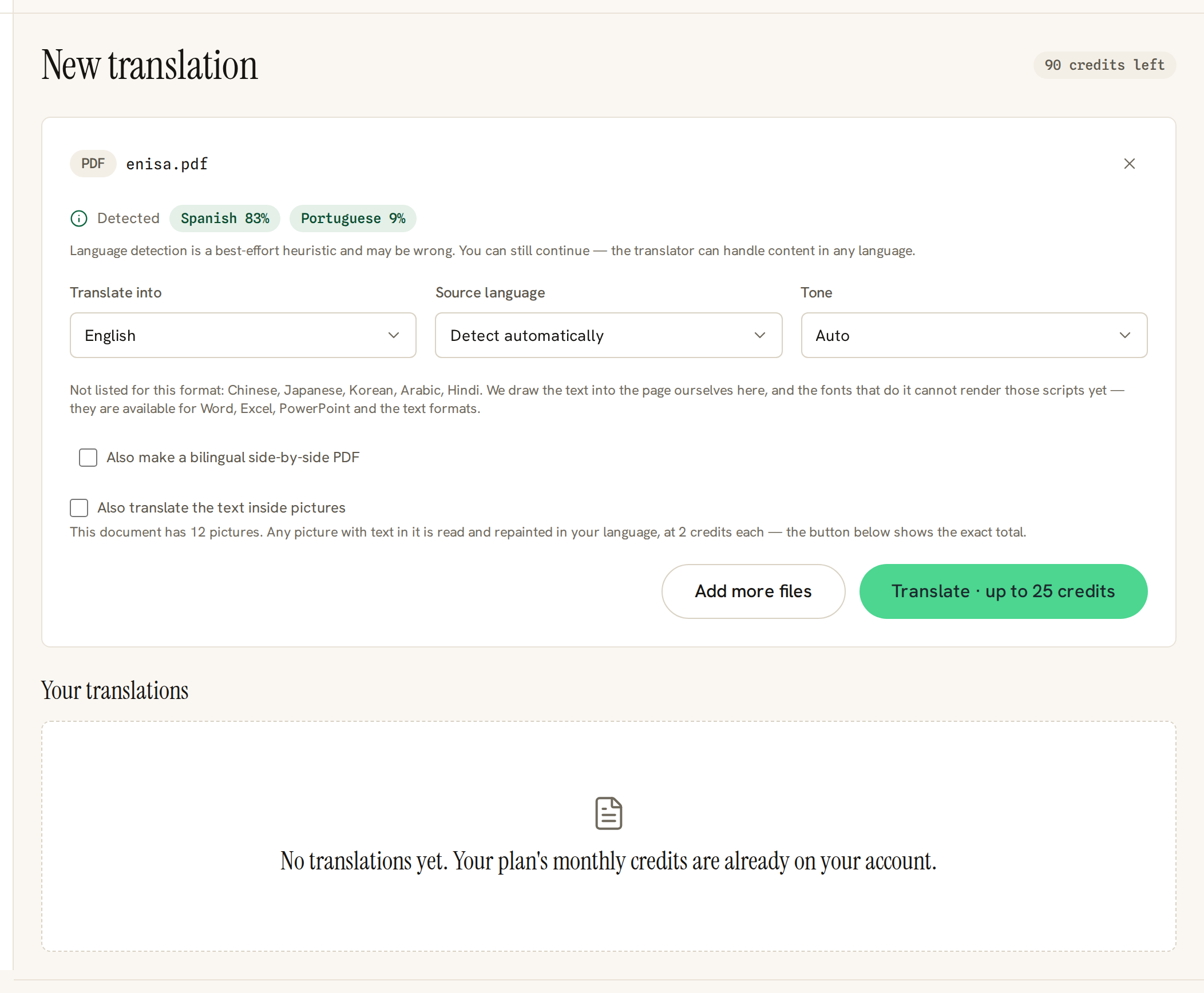
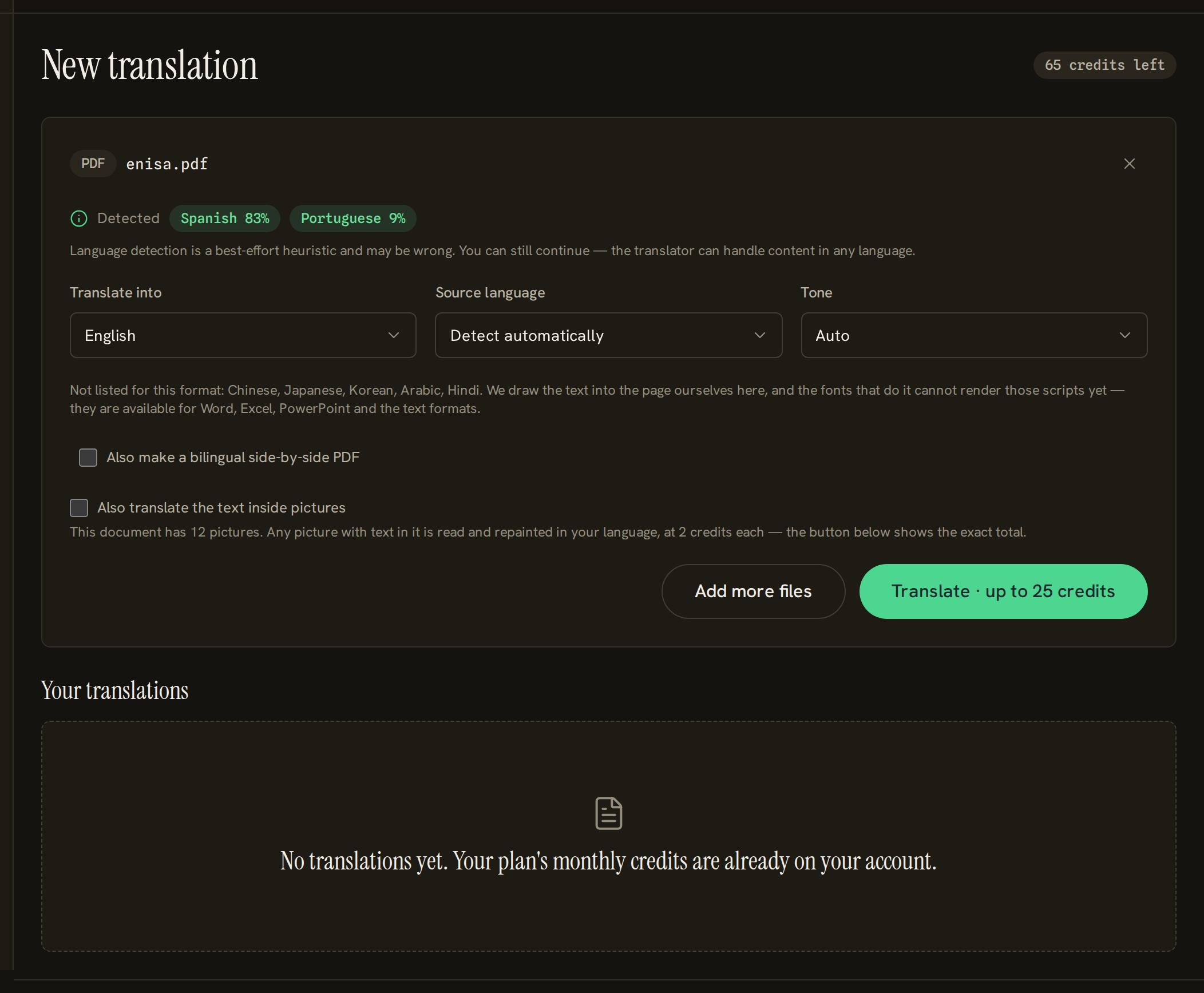
- 1What we think the document is written in, and roughly how much of it is in each language. It is a guess, and you do not have to correct it.
- 2The language you want the document translated into. This is the only choice you have to make.
- 3Leave this on automatic unless the guess above is wrong.
- 4How formal the translation should sound. Automatic follows the document.
- 5PDFs only: also produce a second file with the original and the translation side by side.
- 6The exact cost, before anything is charged. Pressing this is the moment credits are set aside.
4. Wait
Your translation appears in the list underneath with its real progress: the number of pieces of text finished out of the total. You can close the tab — the work carries on without you and the finished file is waiting when you come back.
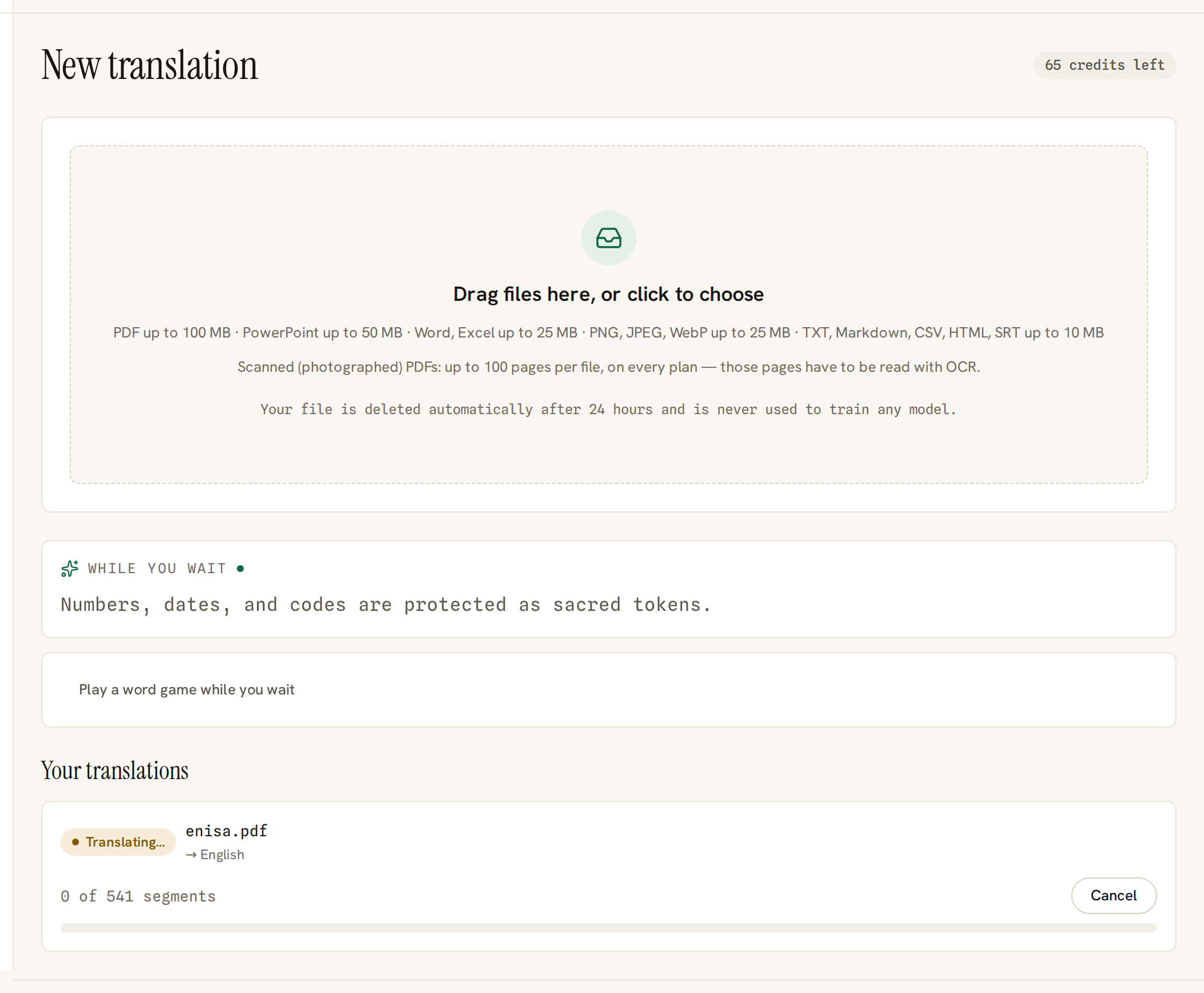
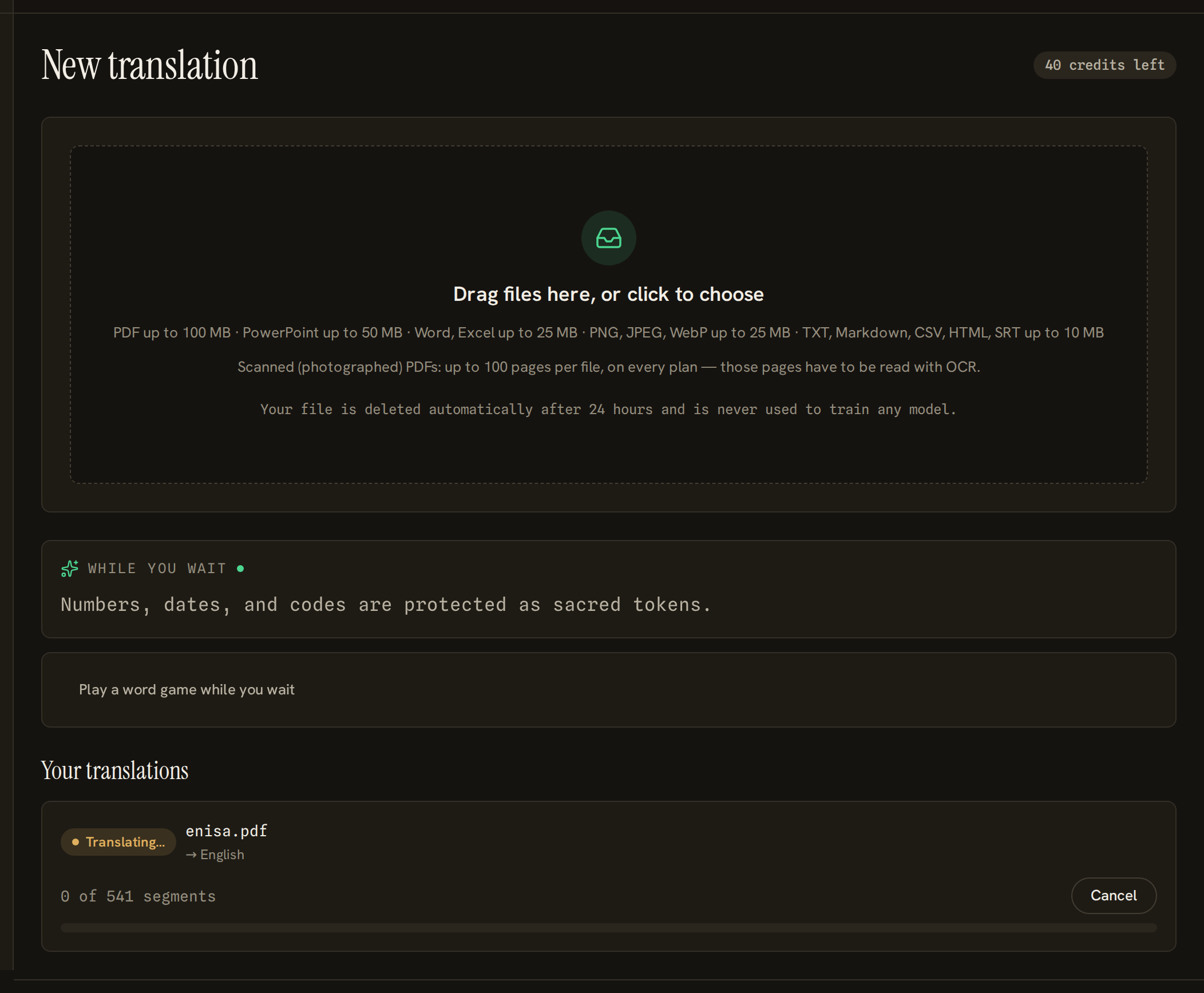
- 1Real counts of real pieces of text, not an invented percentage. A long document moves in steps.
- 2Stops the translation. Credits that were set aside and not used come back to your balance.
- 3Something to read while you wait. Closing the tab does not stop the work.
5. Download
When it is done the card offers the translated file. It is the same kind of file you uploaded, with the same name. If you asked for the side-by-side version of a PDF, a second button offers that too.
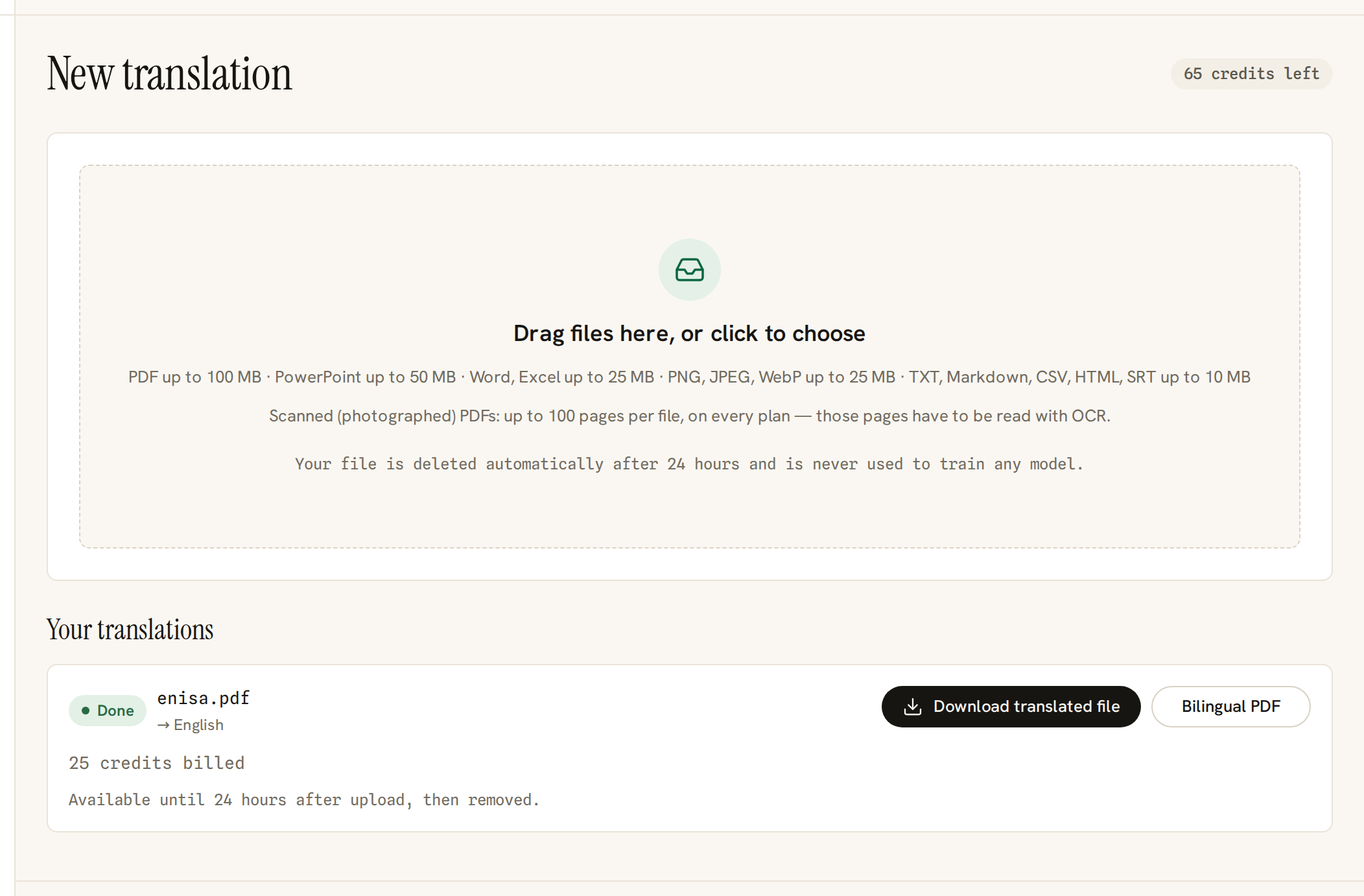
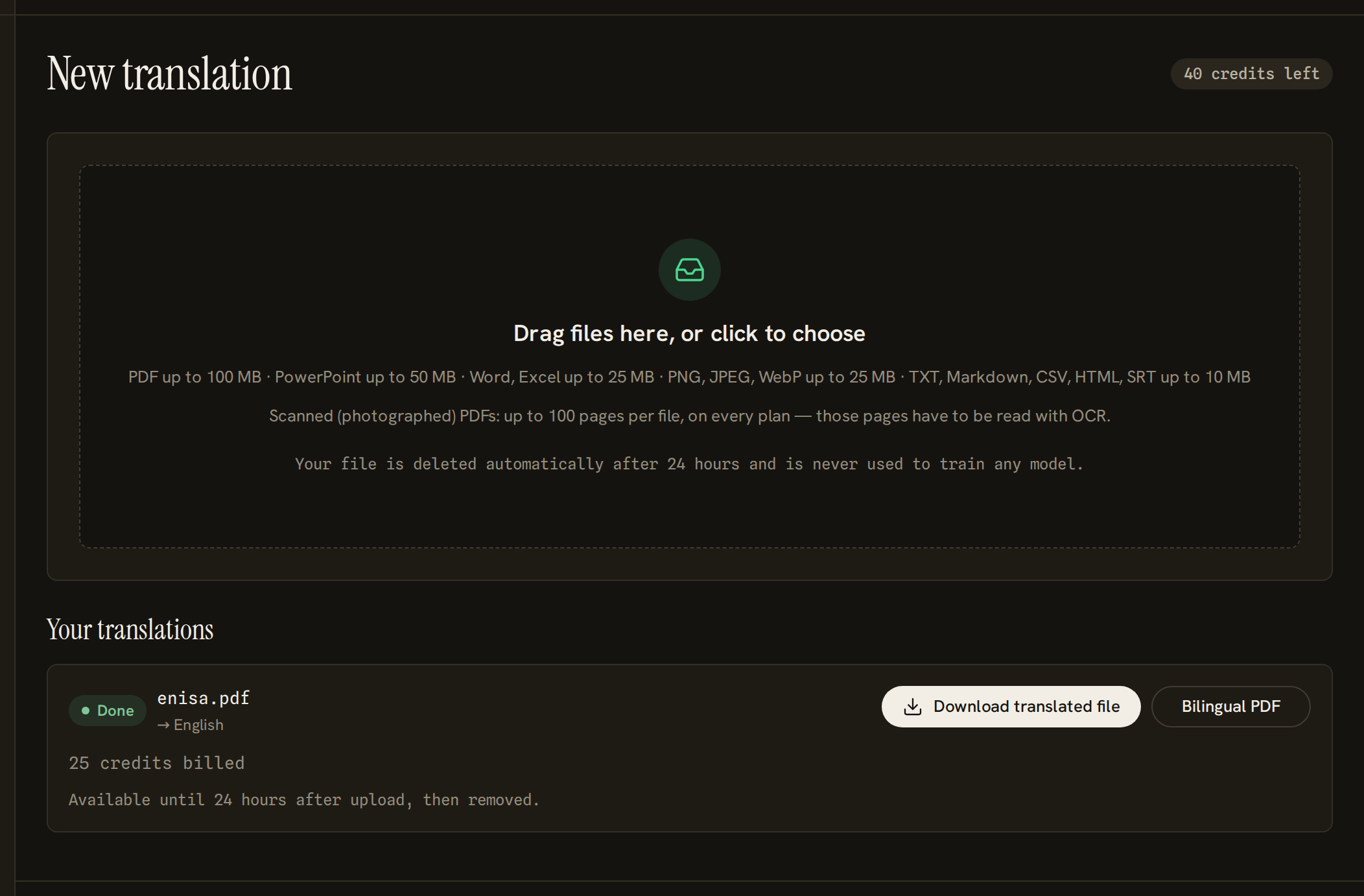
- 1Your translated file, in the format you uploaded.
- 2The side-by-side version, offered only because it was asked for before the translation started.
- 3What this actually cost, from the ledger — not an estimate.
- 4When the file will be removed. Download before then.
After That
- Your file and its translation are deleted 24 hours after upload. Download what you need before then; after that the translation has to be run again.
- Your original is never used to train any model.
- The card tells you how many credits were actually billed, which is the same number the button quoted before you started.